
Parental control · Android

One touch, a safe screen.

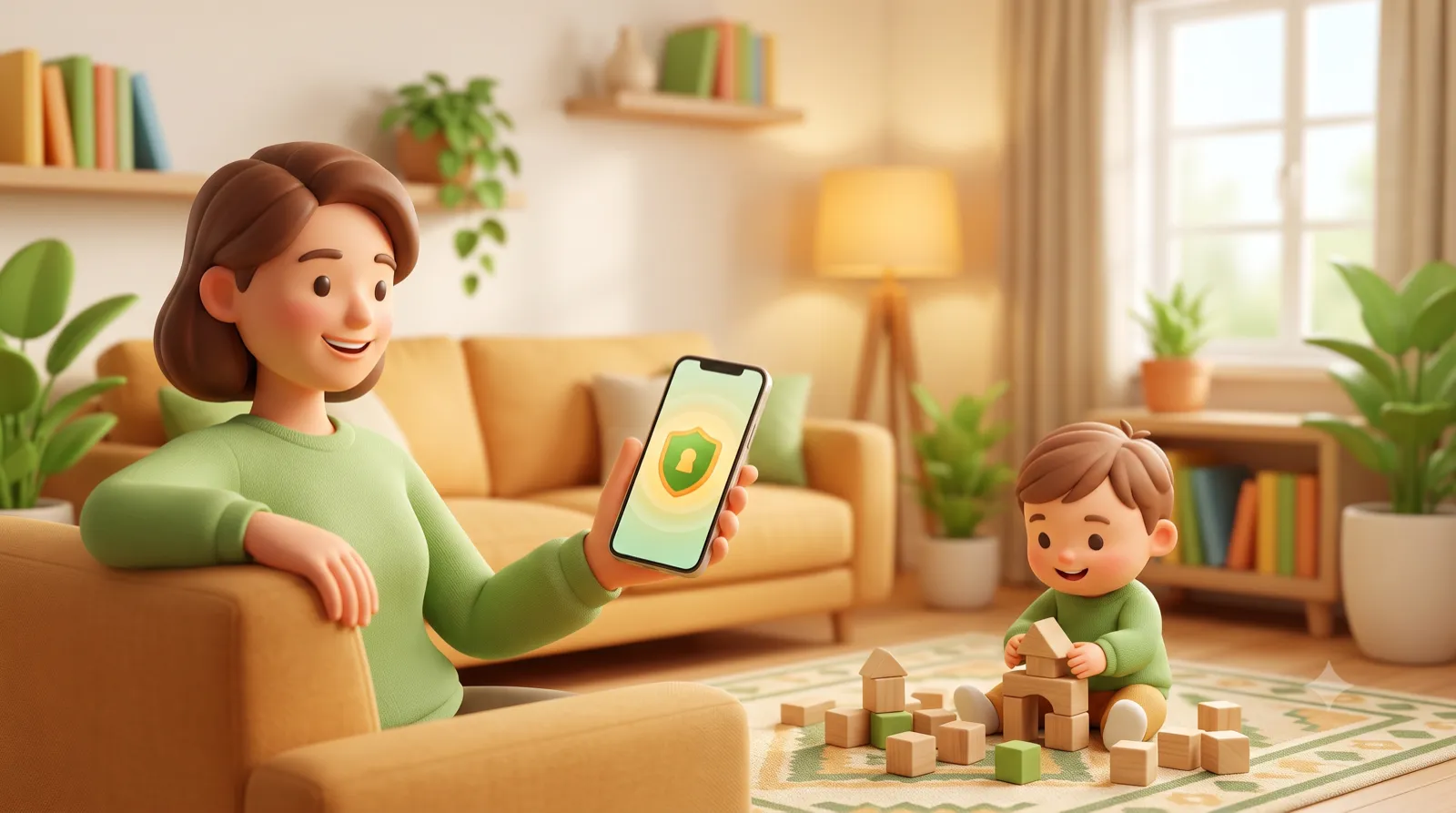
Lock the screen while your child watches a video or a learning app. Stray taps do nothing, and only your code unlocks it.

Free to try. No ads. Android only.

#One-touch lock#No accidental exit#Parent code#Gesture blocking#Hardware keys#No ads#30+ languages#Easy setup
Why Lockidoo

Hand the phone to your child with confidence. Lockidoo icon lock with one touch, unlock only with your code.

#No accidental exit#Parent code#No ads#Easy setup
Features

Simple for parents, safe for kids.

Every feature is here with a real app screen. Set up, lock, unlock with your code.

Finish setup step by step

Four short steps: permissions, parent code and navigation. Each step turns green as you complete it.

Kurulum Durumu

0/4 Hazır

Üstte Gösterme İzni

Yüzen kilit simgesini gösterebilmek için gerekli.

Gerekli Hazır

Erişilebilirlik Servisi

Dokunuşları yalnızca kilit açıkken engeller.

Gerekli Hazır

Ebeveyn Kodu

Kilidi yalnızca senin kodun açar.

Gerekli Hazır

3 Tuşlu Navigasyon

Gezinme tuşlarını kilit sırasında yönetir.

Gerekli Hazır

Only the parent code unlocks it

While locked, enter the 4-digit code to open the screen. Only you know the code.

Ebeveyn Kodu

Kilidi açmak için 4 haneli kodu girin.

Vazgeç

Kilit açıldı

Decide what the keys do

Assign custom actions to the power and volume keys while locked, so nothing gets triggered by accident.

Donanım Tuşları

Tuşlara özel görev ata

Güç (Kilit) Tuşu

Oynat / Duraklat

Ses Açma Tuşu

Ekran Görüntüsü Al

Ses Kısma Tuşu

Ana Ekrana Dön

Taps do nothing while locked

While the lock is on, taps and swipes are blocked. The video stays open and your child cannot exit.

Kilit aktif

Dokunuşlar engellendi
Lockidoo teddy bear mascot

30+ languages, no ads, safe

Use it in more than thirty languages with an in-app picker. No ads, and what your child watches is never analyzed.

Uygulama Dili / Language

Türkçe

Türkçe

English

İngilizce

Deutsch

Almanca

Español

İspanyolca

Français

Fransızca

العربية

Arapça

No ads Content not read 30+ languages Android only
How it works

Three steps open, lock, unlock.

01

Open a video

Open a video or a learning app for your child and hand over the phone with confidence.

02

Lock with one touch

Tap the lock button. The screen locks, and swipes and taps no longer do anything. The video stays open.

Kilit aktif

Dokunuşlar engellendi

Video açık kalır, çocuğun ekrandan çıkamaz.

03

Unlock with your code

When you are done, enter your own code and the screen opens. Only you know the code.

Ebeveyn Kodu

Kilidi açmak için 4 haneli kodu girin.

KİLİDİ AÇ
Kilit açıldı
Trust and privacy

Why the permissions, explained plainly.

Lockidoo asks for two sensitive permissions to run the lock. We never hide what they are used for.

Display over other apps

Needed to draw the lock screen. While the lock is on, an overlay guards accidental taps. It draws nothing while the lock is off.

Only while locked

Accessibility service

Used only to block taps and swipes while the lock is on. It does not read screen content, does not store it and does not share it with third parties.

Content is not read
No ads, fully transparent. Lockidoo shows no ads and does not analyze what your child watches. The data we collect is limited to what your account and subscription need to work. Privacy Policy
Numbers

Small app, real protection.

30+

app languages

7 days free trial

One touch to lock, one code to open

No ads, Android only

FAQ

Questions, answered.

You start with a free trial. After the trial you continue with a monthly or yearly subscription. There are no ads, and subscriptions are managed through Google Play.
No. The accessibility service only blocks taps and swipes while the lock is on. It does not read screen content, does not store it and does not share it with anyone.
The overlay permission draws the lock screen and the accessibility permission blocks taps. Both work only while the lock is on. They have no effect while the lock is off.
Lockidoo runs on Android phones and tablets. It is built in Kotlin for Android. There is no iOS version.
No. Only the parent code you set can unlock the screen. You can change the code any time from Settings.
In the Google Play app, go to Profile, Payments and subscriptions to cancel. Cancellation takes effect at the end of the current period.
You can delete it from the account section in the app or by writing to [email protected]. See the Delete Account page for details.

Hand over the phone, you unlock it.

Free to try. No ads. For Android.